You are looking at the user documentation for the most recent master branch of RepoSense (not released to the public yet).
The documentation for the latest public release is here.
Appendix: RepoSense with GitHub Actions
You can use GitHub Actions (together with other GitHub tools) to automate the generating and publishing of RepoSense reports.
Setting up
The instructions below assume you are using GitHub pages to host your report.
Step 1 Fork the publish-RepoSense repository using this link. Optionally, you can rename the fork to match your RepoSense report e.g., project-code-dashboard.
Step 2 Generate a personal access token or deploy key on GitHub as explained in the panel below.
Granting write access on GitHub
Granting write-access to a repository
We recommend using a personal access token if aiming for the ease of setup and deploy key if aiming for enhanced security.
If you wish to use personal access token:
- Create a personal access token by following this guide and give only
public_repopermission. - Copy the token for later use.
If you wish to use deploy key:
[Windows users] ssh-keygen and base64 are accessible using Git Bash.
- Create a public-private key pair (without a passphrase) using the
ssh-keygen.
i.e.,ssh-keygen -t ecdsa -b 521 -f id_reposense -q -N "" - Create a deploy key as follows:
- Go to the
settingspage of your publish-RepoSense fork - Click on the
Deploy keysitem in the navigation menu in that page - Click on the
Add deploy keybutton and create a new deploy key with the contents ofid_reposense.pub.
- Go to the
- Copy the private key in base64 encoded format for later use.
i.e.,cat id_reposense | base64 -w 0
Step 3 Add the token/key as a secret:
- Go to the
Settingspage of your fork of the publish-RepoSense repo. - Click on the
Secretsmenu item on the left of that page. - Click on
Add secret. - Add a new secret with the name
ACCESS_TOKENorDEPLOY_KEY(depending on your earlier choice) and the value of the token/key you copied earlier.
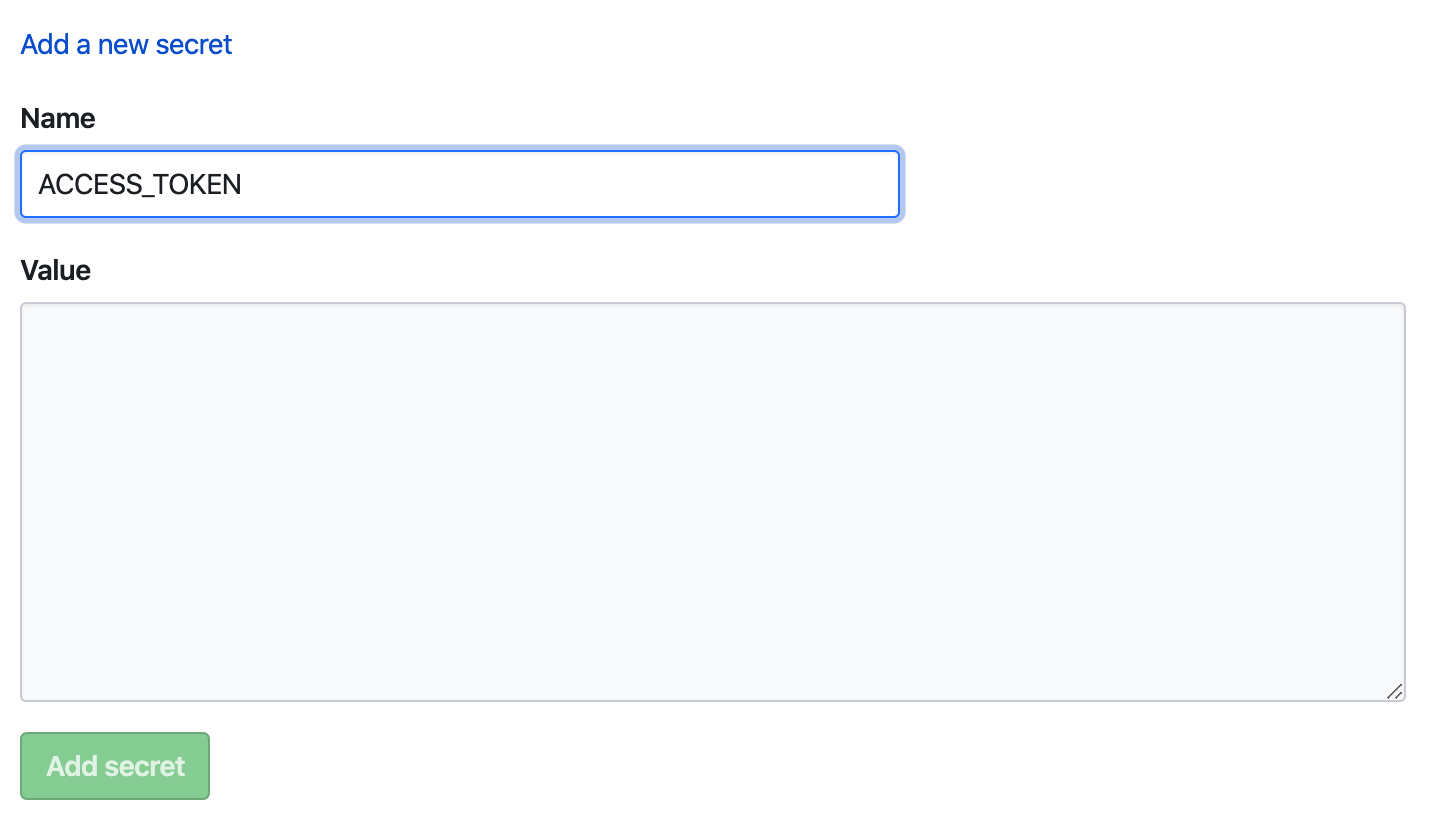
Step 4 Update report configuration:
In your fork, edit run.sh (and if applicable, repo-config.csv, author-config.csv, group-config.csv) to customize the command line parameters or repositories to be analyzed.
Appendix: run.sh format
Appendix: run.sh format
run.sh is a script used for automating RepoSense report generation.
Customizing the RepoSense command
You can update the RepoSense command (i.e., the last line) in the run.sh to match your needs.
Appendix: CLI syntax reference
Appendix: CLI syntax reference
The command java -jar RepoSense.jar takes several flags.
Examples:
An example of a command using most parameters:
java -jar RepoSense.jar --repos https://github.com/reposense/RepoSense.git --output ./report_folder --since 31/1/2017 --until 31/12/2018 --formats java adoc xml --view --ignore-standalone-config --last-modified-date --timezone UTC+08
Same command as above but using most parameters in alias format:
java -jar RepoSense.jar -r https://github.com/reposense/RepoSense.git -o ./report_folder -s 31/1/2017 -u 31/12/2018 -f java adoc xml -v -i -l -t UTC+08
The section below provides explanations for each of the flags.
--assets, -a
--assets ASSETS_DIRECTORY: Specifies where to place assets for report generation.
- Parameter:
ASSETS_DIRECTORYThe directory containing the assets files. Afavicon.icofile can be placed here to customize the favicon of the dashboard. - Alias:
-a - Example:
--assets ./assetsor-a ./assets
- If
--assetsis not specified, RepoSense looks for assets in the./assetsdirectory.
--config, -c
--config CONFIG_DIRECTORY: Specifies that config files located in CONFIG_DIRECTORY should be used to customize the report.
- Parameter:
CONFIG_DIRECTORYThe directory containing the config files. Should contain arepo-config.csvfile. Optionally, can contain anauthor-config.csvfile or/and agroup-config.csvfile or/and areport-config.jsonfile. - Alias:
-c - Example:
java -jar RepoSense.jar --config ./config
- Cannot be used with
--repos. - If both
--reposand--configare not specified, RepoSense looks for config files in the./configdirectory.
--formats, -f
--formats LIST_OF_FORMATS: Specifies which file extensions to be included in the analysis.
- Parameter:
LIST_OF_FORMATSA space-separated list of file extensions that should be included in the analysis.
Default: all file formats - Alias:
-f - Example:
--formats css fxml gradleor-f css fxml gradle
--help, -h
--help: Shows the help message.
- Alias:
-h
Cannot be used with any other flags.
--ignore-standalone-config, -i
--ignore-standalone-config: Specifies that the standalone config file in the repo should be ignored.
- Default: the standalone config file is not ignored
- Alias:
-i - Example:
--ignore-standalone-configor-i
This flag overrides the Ignore standalone config field in the CSV config file.
--last-modified-date, -l
--last-modified-date: Specifies that the last modified date of each line of code should be added to authorship.json.
- Default: the last modified date of each line of code will not be added to
authorship.json - Alias:
-l(lowercase L) - Example:
--last-modified-dateor-l
The last modified dates will be in the same timezone specified with the --timezone flag.
--output, -o
--output OUTPUT_DIRECTORY: Indicates where to save the report generated.
- Parameter:
OUTPUT_DIRECTORYThe location for the generatedreposense-reportfolder.
Default: current directory - Alias:
-o - Example:
--output ./fooor-o ./foo(the report will be in the./foo/reposense-reportfolder)
--period, -p
--period PERIOD: Specifies the period of analysis window.
- Parameter:
PERIODThe period of analysis window, in the formatnd(for n days) ornw(for n weeks). It is used to calculate end date if only start date is specified, or calculate end date if only start date is specified. - Alias:
-p - Example:
--period 30dor--period 4w
- If both start date and end date are not specified, the date of generating the report will be taken as the end date.
- Cannot be used with both
--sinceand--until.
--repos, -r
--repos REPO_LOCATION: Specifies which repositories to analyze.
- Parameter:
REPO_LOCATIONA list of URLs or the disk location of the git repositories to analyze, separated by spaces. - Alias:
-r - Examples:
--repos https://github.com/reposense/RepoSense.git--repos https://github.com/reposense/RepoSense.git c:/myRepose/foo/bar: analyzes the two specified repos (one remote, one local) and generates one report containing details of both.
Cannot be used with --config.
--since, -s
--since START_DATE: Specifies the start date for the period to be analyzed.
- Parameter:
START_DATEThe first day of the period to be analyzed, in the formatDD/MM/YYYY.
Default: one month before the current date - Alias:
-s - Example:
--since 21/10/2017or-s 21/10/2017
- If the start date is not specified, only commits made one month before the end date (if specified) or the date of generating the report, will be captured and analyzed.
- If
d1is specified as the start date (--since d1or-s d1), then the earliest commit date of all repositories will be taken as the since date.
--timezone, -t
--timezone ZONE_ID: Indicates the timezone to be used for the analysis.
- Parameter:
ZONE_IDThe timezone in the formatZONE_ID[±hh[mm]].
Default: system's default timezone - Alias:
-t - Example:
--timezone UTC+08or-t UTC-1030
--until, -u
--until END_DATE: Specifies the end date of the analysis period.
- Parameter:
END_DATEThe last date of the period to be analyzed, in the formatDD/MM/YYYY.
Default: current date - Alias:
-u - Example:
--until 21/10/2017or-u 21/10/2017
Note: If the end date is not specified, the date of generating the report will be taken as the end date.
--version, -V
--version: Shows the version of RepoSense.
- Alias:
-V(upper case)
Cannot be used with any other flags.
--view, -v
--view [REPORT_FOLDER]: Specifies that the report should be opened in the default browser.
- Parameter:
REPORT_FOLDEROptional. If specified, no analysis will be performed and the report specified by the argument will be opened.
Default:./reposense-report - Alias:
-v - Example:
--viewor-v
Specifying which version of RepoSense to use
Depending on which version you wish to use for report generation, add one of the following flags to the line ./get-reposense.py in run.sh (e.g., ./get-reposense.py --release):
--release: Use the latest release (Stable)--master: Use the latest version of the master branch--tag TAGe.g.,--tag v1.6.1: use the version identified by the git tag given
Appendix: Config files format
Appendix: Config files format
Given below are the details of the various config files used by RepoSense.
RepoSense ignores the first row (i.e., column headings) of CSV config files. It is used simply to provide more information to human readers. This also means the columns in your config files should be in the exact order specified here.
A value in a config file is optional to provide unless it is specified as mandatory.
repo-config.csv
repo-config.csv file contains repo-level config data. Each row represents a repository's configuration (example).
| Column Name | Explanation |
|---|---|
| Repository's Location mandatory | The GitHub URL or Disk Path to the git repository e.g., https://github.com/foo/bar.git or C:\Users\user\Desktop\GitHub\foo\bar |
| Branch | The branch to analyze in the target repository, e.g., master. Default: the default branch of the repo |
| File formats*+ | The file extensions to analyze. Default: all file formats |
| Ignore Glob List*+ | The list of file path globs to ignore during analysis for each author, e.g., test/**;temp/** |
| Ignore standalone config | To ignore the standalone config file (if any) in the target repository, enter yes. If the cell is empty, the standalone config file in the repo (if any) will take precedence over configurations provided in the csv files. |
| Ignore Commit List*+ | The list of commits to ignore during analysis. For accurate results, the commits should be provided with their full hash. Additionally, a range of commits can be specified using the .. notation, e.g., abc123..def456 (both inclusive). |
| Ignore Authors List*+ | The list of authors to ignore during analysis. Authors should be specified by their Git Author Name. |
* Multi-value column: multiple values can be entered in this column using a semicolon ; as the separator.
+ Overrideable column: prepend with override: to use entered value(s) instead of value(s) from standalone config.
When using standalone config (if it is not ignored), it is possible to override specific values from the standalone config by prepending the entered value with override:.
author-config.csv
Optionally, you can use an author-config.csv (which should be in the same directory as the repo-config.csv file) to provide more details about the authors to analyze (example). It should contain the following columns:
| Column Name | Explanation |
|---|---|
| Repository's Location | Same as repo-config.csv. Default: all the repos in repo-config.csv |
| Branch | The branch to analyze for this author, e.g., master. Default: the author will be bound to all the repos in repo-config.csv that has the same repo's location, regardless of branch. |
| Author's GitHub ID mandatory | GitHub username of the target author, e.g., JohnDoe |
| Author's Emails* | Associated Github emails of the author. This can be found in your GitHub settings. |
| Author's Display Name | The name to display for the author. Default: author's GitHub username. |
| Author's Git Author Name* | The meaning of Git Author Name is explained in A note about git author name. |
| Ignore Glob List* | Files to ignore for this author, in addition to files ignored by the patterns specified in repo-config.csv |
* Multi-value column: multiple values can be entered in this column using a semicolon ; as the separator.
If author-config.csv is not given and the repo has not provided author details in a standalone config file, all the authors of the repositories within the date range specified (if any) will be analyzed.
group-config.csv
Optionally, you can provide a group-config.csv(which should be in the same directory as repo-config.csv file) to provide details on any custom groupings for files in specified repositories (example). It should contain the following columns:
| Column Name | Explanation |
|---|---|
| Repository's Location | Same as repo-config.csv. Default: all the repos in repo-config.csv |
| Group Name mandatory | Name of the group, e.g.,test. |
| Globs * mandatory | The list of file path globs to include for specified group, e.g.,**/test/*;**.java. |
* Multi-value column: multiple values can be entered in this column using a semicolon ; as the separator.
Note that a file in a given repository should only be tagged to one group.
e.g.: example.java in example-repo can either be in the test group or the code group, but not in both test and code group. If multiple groups are specified for a given file, the latter group (i.e., code group) is set for the file.
report-config.json
You can optionally use report-config.json to customize report generation by providing the following information. (example)
Fields to provide:
title: Title of the generated report, which is also the title of the deployed dashboard. Default: "RepoSense Report"
config.json (standalone config file)
Repo owners can provide the following additional information to RepoSense using a config file that we call the standalone config file:
- which files/authors/commits to analyze/omit
- which git and GitHub usernames belong to which authors
- the display of an author
To use this feature, add a _reposense/config.json to the root of your repo using the format in the example below (another example) and commit it (reason: RepoSense can see committed code only):
{
  "ignoreGlobList": ["about-us/**", "**index.html"],
  "formats": ["html", "css"],
  "ignoreCommitList": ["90018e49f129ce7e0abdc8b18e91c9813588c601", "67890def", "abc123..def456"],
  "ignoreAuthorList": ["charlie"],
  "authors":
  [
    {
      "githubId": "alice",
      "emails": ["alice@example.com", "alicet@example.com"],
      "displayName": "Alice T.",
      "authorNames": ["AT", "A"],
      "ignoreGlobList": ["**.css"]
    },
    {
      "githubId": "bob"
    }
  ]
}
Note: all fields are optional unless specified otherwise.
Fields to provide repository-level info:
ignoreGlobList: Folders/files to ignore, specified using the glob format.formats: File formats to analyze. Default: all file formatsignoreCommitList: The list of commits to ignore during analysis. For accurate results, the commits should be provided with their full hash. Additionally, a range of commits can be specified using the..notation e.g.abc123..def456(both inclusive).ignoreAuthorList: The list of authors to ignore during analysis. Authors specified inauthorsfield orauthor-config.csvwill be also be omitted if they are in this list. Authors should be specified by their Git Author Name.
Fields to provide author-level info:
Note: authors field should contain all authors that should be captured in the analysis.
githubId: GitHub username of the author. mandatory field.emails: Associated GitHub emails of the author. This can be found in your GitHub settings.displayName: Name to display on the report for this author.authorNames: Git Author Name(s) used in the author's commits. By default, RepoSense assumes an author would use her GitHub username as the Git username too. The meaning of Git Author Name is explained in A note about git author name.ignoreGlobList: Additional (i.e. on top of the repo-levelignoreGlobList) folders/files to ignore for a specific author . In the example above, the actualignoreGlobListforalicewould be["about-us/**", "**index.html", "**.css"]
To verify your standalone configuration is as intended, add the _reposense/config.json to your local copy of repo and run RepoSense against it as follows:
- Format:
java -jar RepoSense.jar --repo LOCAL_REPO_LOCATION - Example:
java -jar RepoSense.jar --repo c:/myRepose/foo/bar
After that, view the report to see if the configuration you specified in the config file is being reflected correctly in the report.
A note about git author name
Git Author Name refers to the customizable author's display name set in the local .gitconfig file. For example, in the Git Log's display:
...
commit cd7f610e0becbdf331d5231887d8010a689f87c7
Author: ConfiguredAuthorName <author@example.com>
Date:   Fri Feb 9 19:14:41 2018 +0800

    Make some changes to show my new author's name

commit e3f699fd4ef128eebce98d5b4e5b3bb06a512f49
Author: ActualGitHubId <author@example.com>
Date:   Fri Feb 9 19:13:13 2018 +0800

    Initial commit
 ...
ActualGitHubId and ConfiguredAuthorName are both Git Author Name of the same author.
To find the author name that you are currently using for your current git repository, run the following command within your git repository:
git config user.name
To set the author name to the value you want (e.g., to set it to your GitHub username) for your current git repository, you can use the following command (more info):
git config user.name "YOUR_AUTHOR_NAME”
To set the author name to use a default value you want for future git repositories, you can use the following command:
git config --global user.name "YOUR_AUTHOR_NAME”
RepoSense expects the Git Author Name to be the same as author's GitHub username. If an author's Git Author Name is different from her GitHub ID, the Git Author Name needs to be specified in the standalone config file. If the author has more than one Git Author Name, multiple values can be entered too.
Note: Symbols such as ", !, / etc. in your author name will be omitted, which may reduce the accuracy of the analysis if 2 names in the repository are approximately similar.
Step 5 View the generated report:
To access your regenerated RepoSense report, go to the settings of your fork in GitHub, under GitHub Pages section, look for Your site is published at [LINK]. It should look something like https://[YOUR_GITHUB_ID].github.io/publish-RepoSense.

Updating the report
Manual:
- You can trigger GitHub to re-generate and re-deploy the report by pushing an empty commit to your fork.
- Currently, the GitHub Actions UI does not support the manual execution of workflows.
Automated: GitHub actions can be set to run periodically.
- Edit the
.github/workflows/main.ymland uncomment theschedule:section. - You may change the expression after
cron:to a schedule of your choice. Read more about cron syntax here. - Commit your changes.